Category Archives: Tips N Tricks

Have you tried these tricks with your iPhone Headphones ?

There are lots of work behind the Apple Earpods. Earpods are designed and manufactured in a way that it will fit most ears with comfort. I personally like Earpods because of its comfort and sound quality. Many of us use apple Earpods. There are lots of other things you can do with your Earpods apart from listening to your music.

tricks-iphone-headphones

Call

Incoming call – Tap the center button once to answer the call.

On Call – Tap the center button once to disconnect the call.

Tap the center button and hold to reject an incoming call.

Siri

Press and hold the center button for few seconds to activate Siri using your Earpods.

Music

You don’t need to open the music app to use these functions. 

Tap the center button once for play / Pause.

Tap the center button twice for next song, Tap twice and hold to fast forward.

Tap the center button thrice for previous song. Tap thrice and hold to rewind the song.

Use volume buttons to control volume.

Camera

Apple made a change to iOS that now we can snap photos using volume up key. This function works well with Earpods if connected.  This helps you to take better shots with your Earpods as remote control for your camera app.

These functions works with other headphones too. I personally tested these functions with A-Jays fours. It worked like a charm. All you need is better inline remote control with 3 button functions.
iCloud.com Redesigned With iOS 7 Design

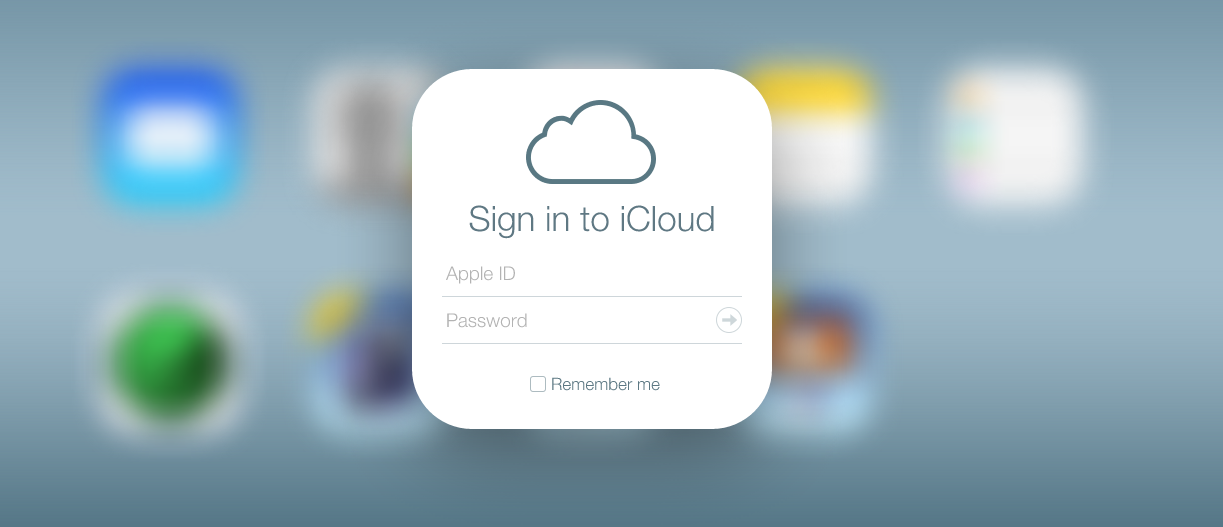
Apple’s iOS 7 is the major iOS change in the history. iOS 7 is completely redesigned with new effects and flat icons. Apple was redesigning iCloud.com site to match with iOS 7, finally the new redesigned site is available for all and comes out of beta.

iCloud.com iOS 7

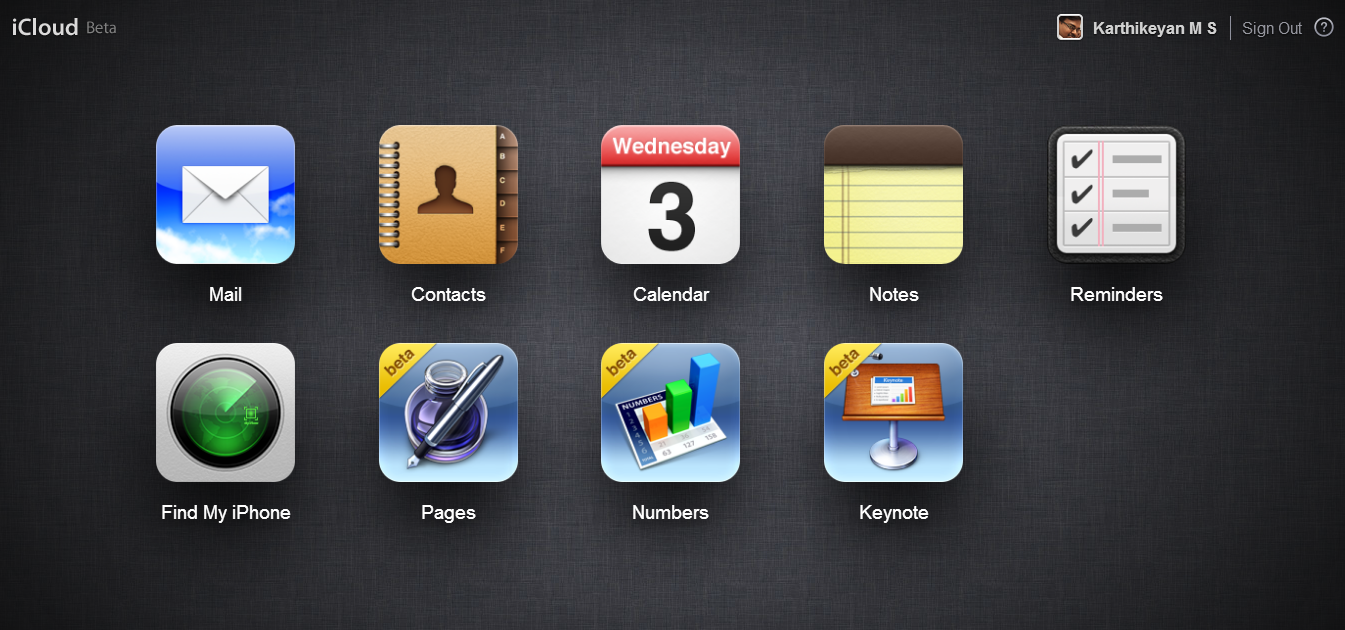
iCloud.com includes contacts, mail, calender, remainder, notes, iWork apps and find my iPhone feature. Go to iCloud.com and login with your ID to enjoy the new taste.

iWork For iCloud Beta

iWork For iCloud Beta Is Now Available For All

Apple announced the web based iWork Suite (Pages, Numbers and keynote) at WWDC 2013. iWork for iCloud is currently under beta and now anyone can access it. Just visit beta.icloud.com and login with your Apple ID to access these beta apps. All you need is a latest version of modern browser.

These web based apps are similar to keynote, pages and numbers for iPhone and iPad.

Note : iWork for iCloud is under beta, make sure you have a backup of your file in your PC.

iWork For iCloud Beta

iWork for iCloud lets you create beautiful documents, spreadsheets, and presentations using Pages, Numbers, and Keynote in your browser on a Mac or PC.

As a Registered Apple Developer, you can be one of the first to use the beta of iWork for iCloud. To get started, simply go to beta.icloud.com with the latest version of Safari, Chrome, or Internet Explorer and sign in with the Apple ID associated with your Registered Apple Developer account.

Please note that these web apps are in beta and it’s important that you regularly maintain a local backup of your documents.

iPhone 5

How Does The iPhone 5 Improve Upon The iPhone 4S?

Apple’s current version of the iPhone is the iPhone 5 which was released this September by retailers like Dialaphone. This mobile phone provides some significant upgrades from its previous iPhone, the 4S. Many of these enhancements are significant enough that many owners of previous iPhone models have upgraded.

iPhone 5

One of the biggest changes with the iPhone 5 is that it is now capable of supporting speedy 4G networks. Up until the release of the iPhone 5, the only Apple device compatible with 4G networks was the latest version of the iPad. Apple also redesigned the headphones for release with the iPhone 5. The EarPods are specially designed to deliver music straight into your ears which helps to block out extraneous sounds.

The cameras built into the iPhone 5 are much better. At face value, many will notice that the iPhone 5 has the same resolution as the iPhone 4S which is a 8 megapixels. However, the important updates to the camera actually surround the technology which is built around them. The iPhone 5 includes a hybrid IR filter. It also has a mode that works well in low light. The cover of the phone is a sapphire crystal. The iPhone 5 also has iOS 6 which improves the ability of the phone to process images. The front facing phone is also a step up from the 4S. It has a resolution of 1.2 megapixels and is capable of capturing 720p video. All of these aspects make the cameras clearly better with the iPhone 5.

The iPhone 5 clearly has a much more powerful processor. As a result, tasks can be performed much faster with this latest version than with the 4S. Many wonder what specifically was changed but it seems Apple would rather keep mum about it than divulge their secrets.

Your iDevice Can Read Selected Text For You, Here Is The Steps To Enable It

Apple introduced iPhone in 2007. Apple made lots of changes to the iPhone in these years. Latest iPhone 5 is amazing with new stunning design and improved hardware. The new A6 Processor is Apple’s custom processor and its amazingly 2 times faster than the previous iPhone (iPhone 4S). Here is the benchmark.

Like the hardware, Apple also updated their mobile operating system. Hardware is just the body, iOS is the soul. Apple perfected both hardware and software to satisfy its customers. iOS got lots of changes when compared to the previous versions.

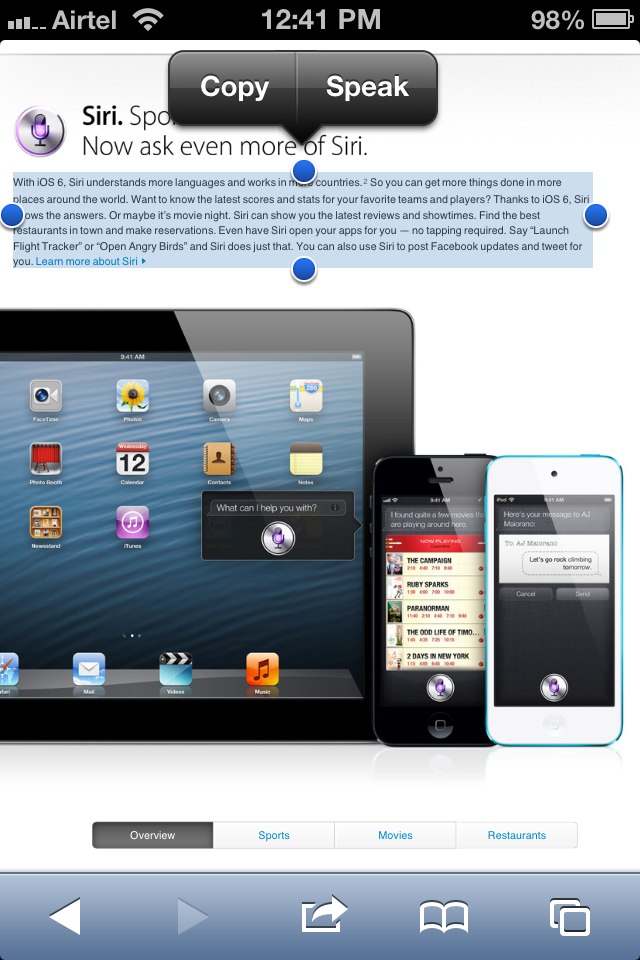
Apple introduced Speak Selection feature in iOS 5. Speak selection feature is really cool, all we have to do is select the text and hit speak, listen. This really saves time and improve our productivity. This works with Mail, Browser and notes app. Now you can easily complete long article in short time. Continue reading Your iDevice Can Read Selected Text For You, Here Is The Steps To Enable It

How To Enable FaceTime Over Cellular [3G or LTE]

In 2010, Steve Jobs unveiled iPhone 4, it has front facing camera which is useful for FaceTime video calls. FaceTime is only possible over WiFi network. During initial Launch FaceTime is only possible between iPhone 4.  Later unveiled new products and now FaceTime is possible between iPod Touch, iPhone 4/4S, iPad 2/New iPad, MacBook Airs, Mac Book Pros, iMacs and Mac Mini’s.  Continue reading How To Enable FaceTime Over Cellular [3G or LTE]

How To Make Voice Calls Using FaceTime On iPhone, iPad and iPod Touch

Steve Jobs introduced FaceTime for iPhone 4 at WWDC 2010, FaceTime (Apple’s Video Calling Feature) really changed the way of communication. You can see your loved one’s face and also what they see. FaceTime became popular in few days, so Apple introduced FaceTime on iPad , iPad Touch and even on Mac Computers. Continue reading How To Make Voice Calls Using FaceTime On iPhone, iPad and iPod Touch

How To Gift iPhone, iPad Apps Or Games To Your Loved Ones

iPhone and iPad has lots of apps and games when compared to other mobile operating systems. Most of the premium apps for iPhone and iPad are really value for the money. You can gift iPhone and iPad apps to anyone. You can directly gift apps from iTunes or from your iOS device. Here is our simple tip…. Continue reading How To Gift iPhone, iPad Apps Or Games To Your Loved Ones

How To Get Paid iPhone, iPad, iPod Touch Apps For FREE !!

Are you a proud owner of iPhone. iPad and iPod Touch ? Looking for a way to get paid apps for free ? Here’s our tutorial on How To Get Paid iPhone, iPad, iPod Touch Apps For FREE

 FMA

STEPS: How To Get Paid iPhone, iPad, iPod Touch Apps For FREE

STEP 1. Go to this URL ( goo.gl/xAlDAf ) from your iDevice safari browser.

STEP 2. Once the page is open. Tap on free apps to install the profile, this helps to track your activities.

STEP 3. Start downloading the sponsor apps. Once you download the apps, open the app for 30+ seconds. Close or delete the app (your wish).

STEP 4. Go back to safari browser and hit refresh you will see the credits (Some times a there will be little delay in time), these credits can be used to redeem paid apps

STEP 5. Once you accumulated enough credits go to “View Gift Apps” and download your paid app for free. When you tap on the app you will get promocode, which can be redeemed through US iTunes account. To get US iTunes Account follow this procedure.

Note the credits varies according to the apps.

Hope you like this tutorial.