Tag Archives: iOS 7

iOS 7 Beta Direct Download Links

Download iOS 7 / 7.0 – Released To The Public [Direct Download Links]

Apple has finally released iOS 7 to the public, and it is now available for download.  You can now update your iOS device to iOS 7 via OTA or through PC or MAC. First go to General settings – Software update and check for any update, If you see iOS 7 Download and install. Simple.
iOS 7 Beta Direct Download Links


If you have any issues connect your iOS device to your PC or Mac, update your iTunes to latest one. Once the device is shown Click check for update and update your device. You can also manually download .ipsw files and Shift+Click (Option+Click on a Mac) the “Check for update” or “Update” button and browse for the IPSW file.

iOS 7 is designed by Ive. iOS 7 comes in new taste and flat design. iOS 7 brings lots of great new features including improved mission control, notification bars and over 200 new features.

iOS 7

iOS 7 / 7.0 IPSW Direct Download Links

iTunes 11.1 Direct Download Links

You are welcome to share your impressions with us after you install this newest firmware update.
Downgrade iOS 7 to iOS 6

Apple Uploaded WWDC 2013 On Youtube

The most exciting thing happened on June 10, 2013, Its WWDC, Apple’s Worldwide developer conference. Apple streamed the event online, but to watch customers required safari browser and quicktime. Apple introduced iOS 7 and OX mavericks, the two major software for Apple mobile devices and apple computers.

Apple also gave us the sneak peak of the new upcoming beast, Mac pro. Apart form these Apple introduced MacBook Air with new generation Intel Haswell processors which whooping 12 hours battery life.

Today Apple uploaded entire WWDC 2013 event on their YouTube channel. Here comes the video.

Please share your comments about Apple WWDC 2013 event in the comments section.

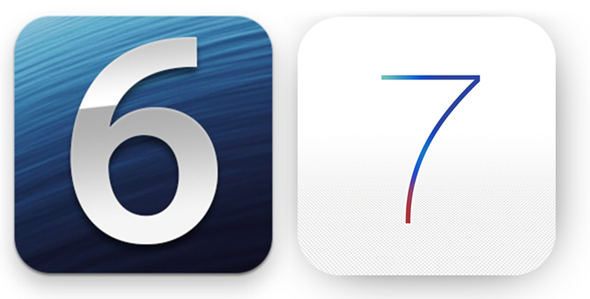
Downgrade iOS 7 to iOS 6

How To Downgrade iOS 7 To iOS 6.1.3 / iOS 6.1.4

Apple unveiled the new innovative simple, elegent and most advanced iOS operating system at WWDC. The new iOS 7 is available as beta for iPhone for developers. I can see most of the iOS users activated their UDID to install iOS 7 on their iPhone. iOS 7 has amazing visual elements and added functionality. The elements are beautiful, typography is good,  simple and stunning. Apple also added some features like facetime audio calls, torch, mission control, automatic app updates and flat icons and lot more.

According to me, iOS 7 is best on iPhone 5, because it has a powerful hardware. Much expected visual element, transparency in missing on iPhone 4 and iPhone 4S. Every operating system is hardware dependent. There are some features like Airdrop and live wallpapers and weather animations are only available for iPhone 5.  Many reported that, there are lots of bugs to be addressed for old devices.

If you are using iPhone 4 and iPhone 4S to install and try iOS 7 beta, you can feel your phone is slow and lag. I installed iOS 7 on my iPhone 4. App dock is supposed to be transparent but it is grey in color. My phone also restarted for 3 times. Third party apps are opening slow in older devices and frequent crash. Some of the graphical elements are overlapping.

I advice not to try iOS 7 on older phones. If your are using iPhone 4/4S as main device please don’t install iOS 7 beta . Since my iPhone is my main phone I downgraded iOS 7 to iOS 6.1.3. If you want to try iOS 7 please wait for next beta or wait for final release of iOS 7.


Downgrade iOS 7 To iOS 6.1.3 /iOS 6.1.4 (iPhone 5)

  • Goto apple download page and download your latest firmware  – iOS 6.1.3 (iPhone 4/4S) – iOS 6.1.4 (iPhone 5) (Latest Public Release)
  • Open iTunes on your PC or Mac and connect your phone.
  • Select your device, use Option + Click (Mac Users) or Shift + Click (Windows users)  on restore button and select the iOS 6.1.3 or iOS 6.1.4 .ipsw file.
  • Now your device will be successfully restored to iOS 6.1.3 (iPhone 4/4S) or iOS 6.1.4 (iPhone 5)